There is a new release available of our 3D program XFEM4U 2026.1.
Click here to install the new release (2026.1.01).
On release notes you will find an overview of all new features and improvements
The most important new features:
1. New Export to IDEA StatiCa
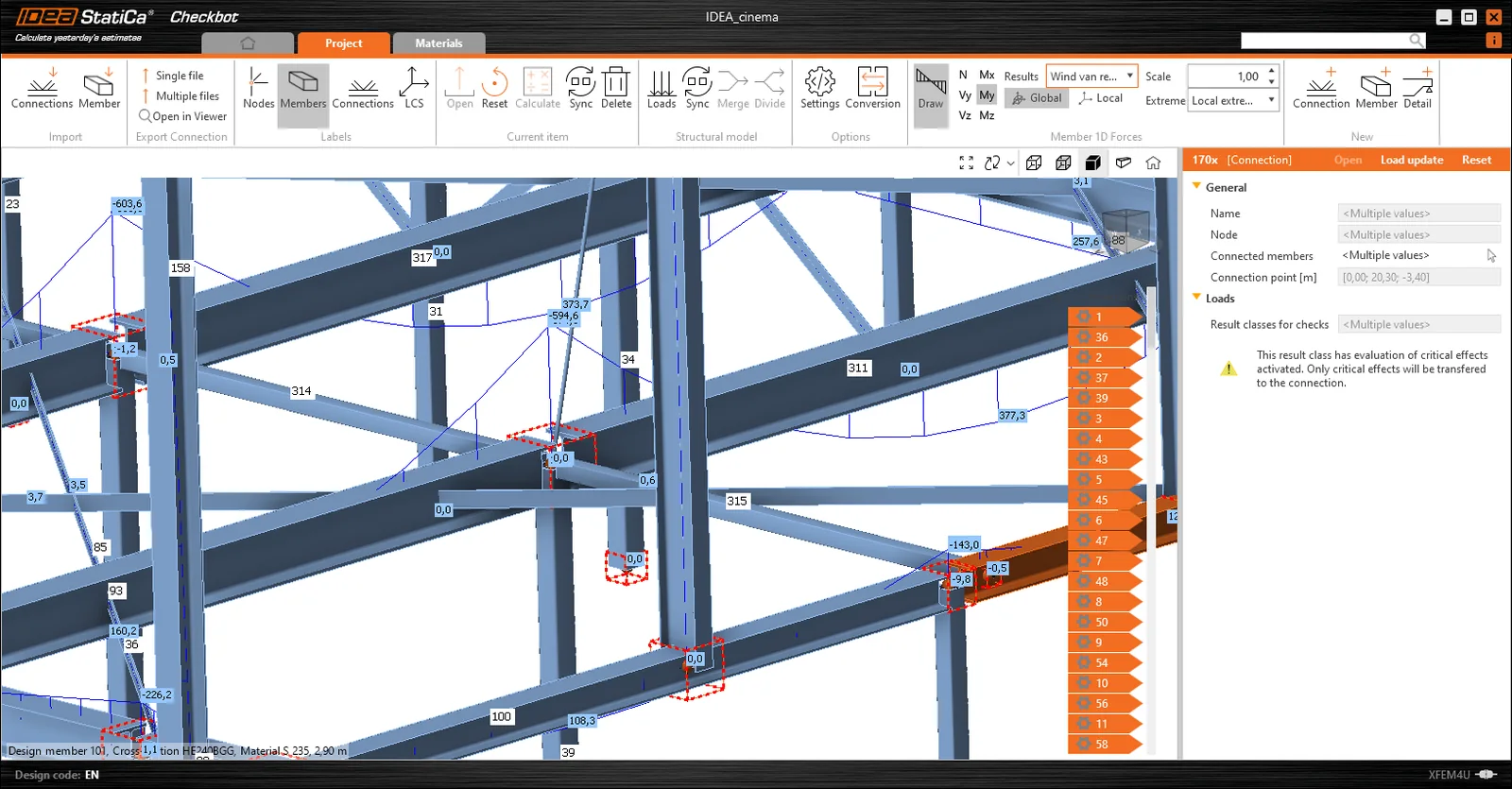
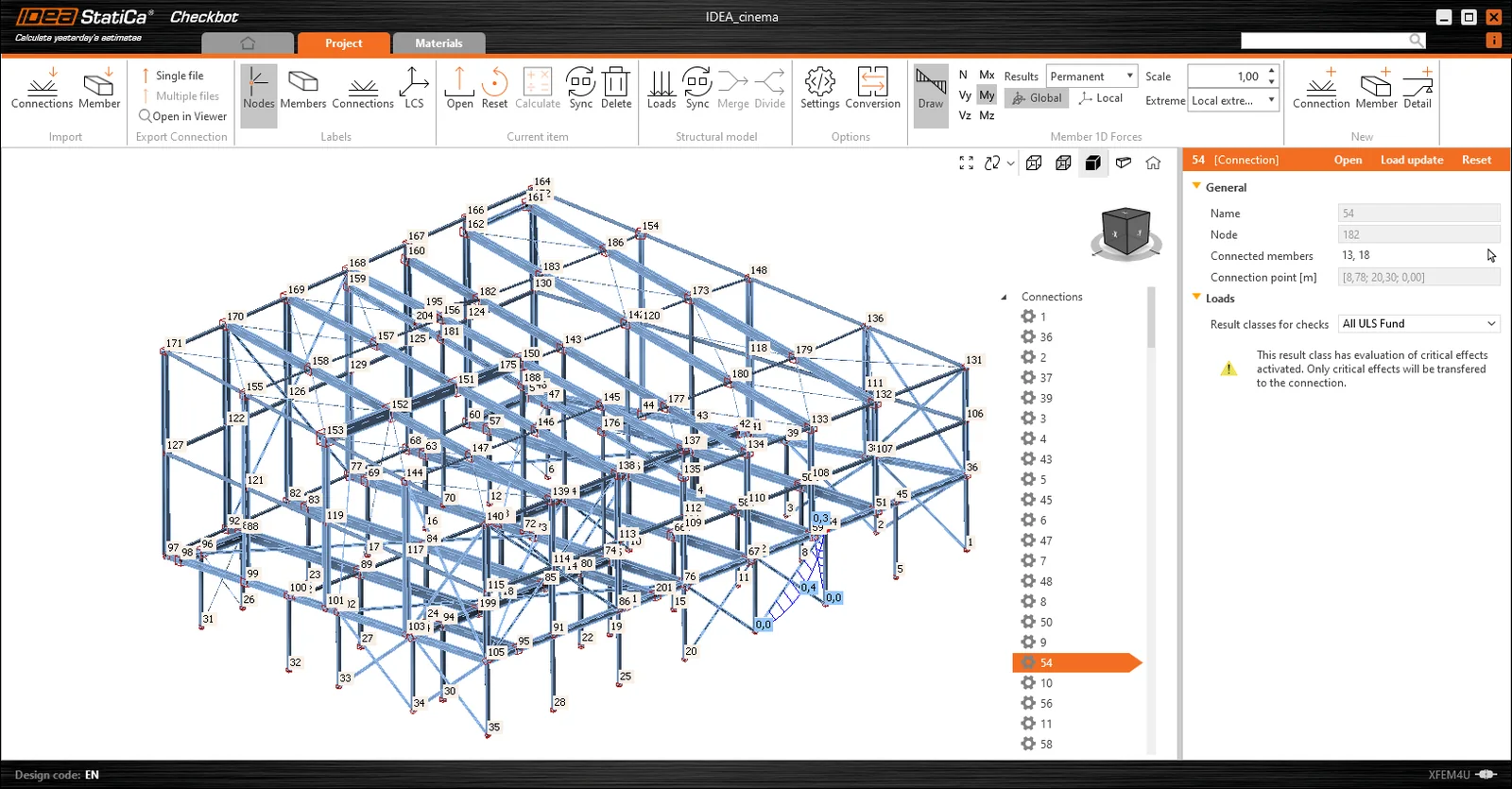
It is now possible to share your steel structure you created in XFEM4U with IDEA StatiCa. The geometry (or a selected part of it) including all ULS combination forces can be read in by IDEA StatiCa so you can quickly design your connections there. This wish was often mentioned by users and is now realized.
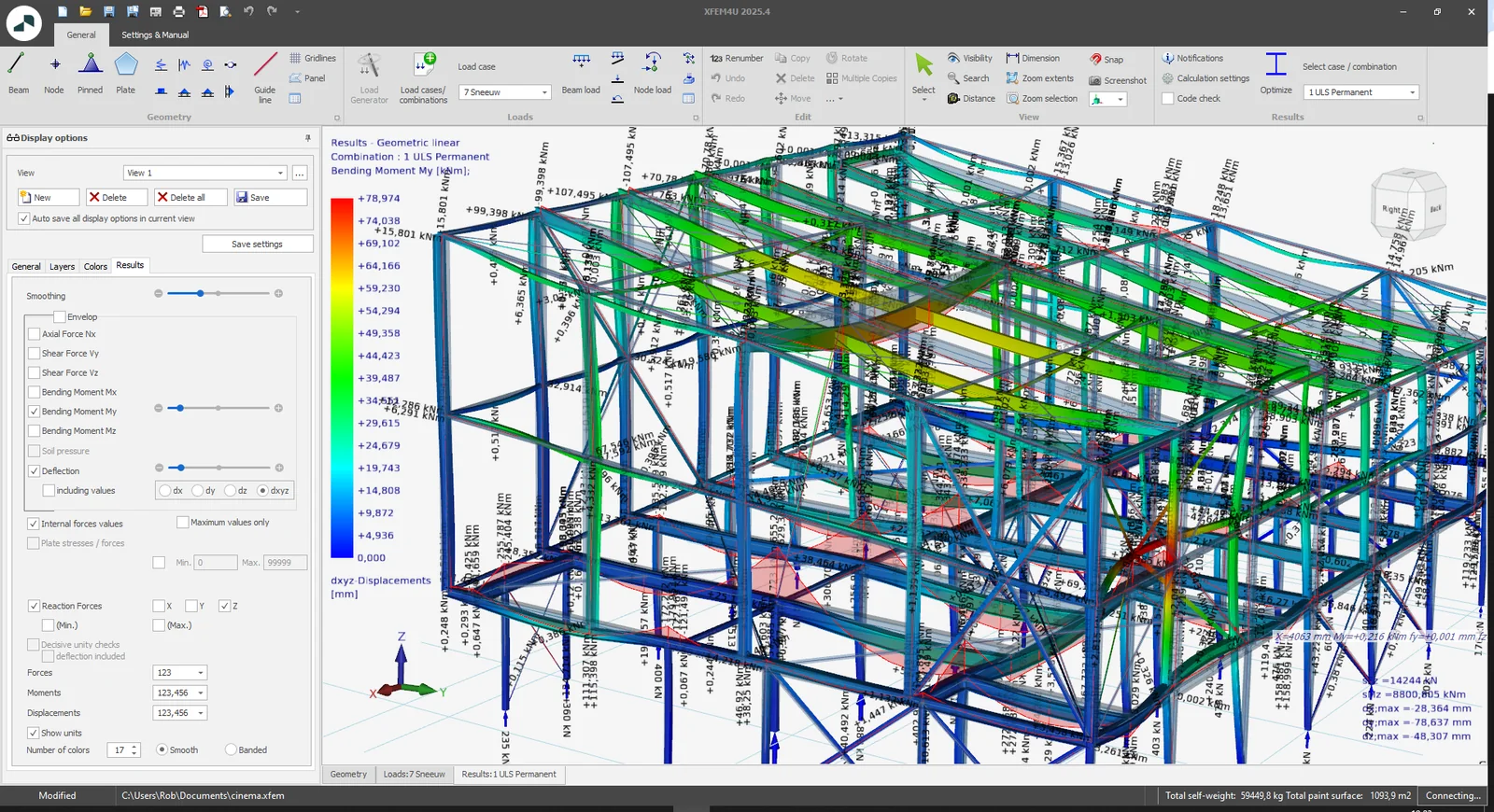
Wondering how easy that works? Click here for a demo.
2. New Import from Tekla
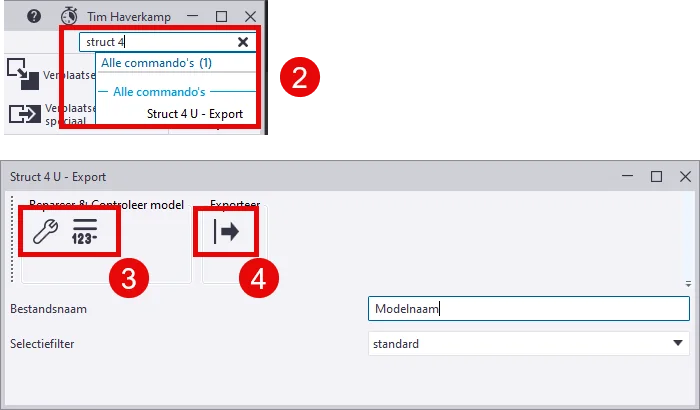
You can now convert your (steel) structure you created in TEKLA to an XFEM4U model.
We had Tekniq Solution create an XML export tool at the request of customers. You can then import this XML file into XFEM4U. This wish was also often mentioned by users and has now been realized.
How to do it?
- Download and install TSEP.
- Search the quick start for the tool.
- Check/number Tekla model.
- Press the export button.
- Folder with the XML file opens.
- In XFEM4U then import the XML file.
Read the points of interest to properly convert your Tekla model to XFEM4U.
3. New Selecting objects
Depending on the view, multiple objects may be behind each other. On selection, the nearest object is selected by default.
Ok. But how can you select a trailing object? There are 2 ways to do that:
- With the 'Q' key you can loop through those overlapping objects. Each time you press the 'Q' key, another object is selected successively in a loop.
- Hold down the left mouse button for a moment and a dialog box will appear with a list of all overlapping objects sorted by depth. You can then select one or even several objects here. Use the Shift key or the Ctrl key, respectively, to make the desired selection. (help desk #2635)
4. Improved Automatic meshing
When inserting a plate or wall, the plate or wall is automatically meshed. With small models, this is certainly convenient. Not so with large models. Meshing many connecting plates takes a relatively long time. You can disable automatic meshing. You can do that in the display options and in the plate dialog. Now you can enter your plates and walls even easier. And when you are done with that, you can mesh your model at once.
5. Improved Surface load
With linear surface loads, 3 points always had to be selected. This is no longer required. By default, the first 3 points of the contour line are selected. Of course, you can still optionally select other points. With this improvement you can enter your linear surface load even easier and faster. (help desk #2643)
6. New Navigation Cube
In XFEM4U, the Navigation Cube at the top right of the screen allows you to quickly switch views by clicking on it. What's new is that if you click on "top" and click on "top" again, for example, the bottom is shown. Likewise with the other directions. (help desk #2634)
To stay up to date with the latest developments you can follow us on Linkedin.